Blog • 2026
AI is great — but your photos shouldn’t leave your device
AI tools are genuinely useful. For example, ChatGPT can help brainstorm captions, draft product copy, or outline a checklist (see chatgpt.com). But when it comes to sensitive images, the best workflow is often the simplest one: blur locally, keep control, and avoid unnecessary data sharing.
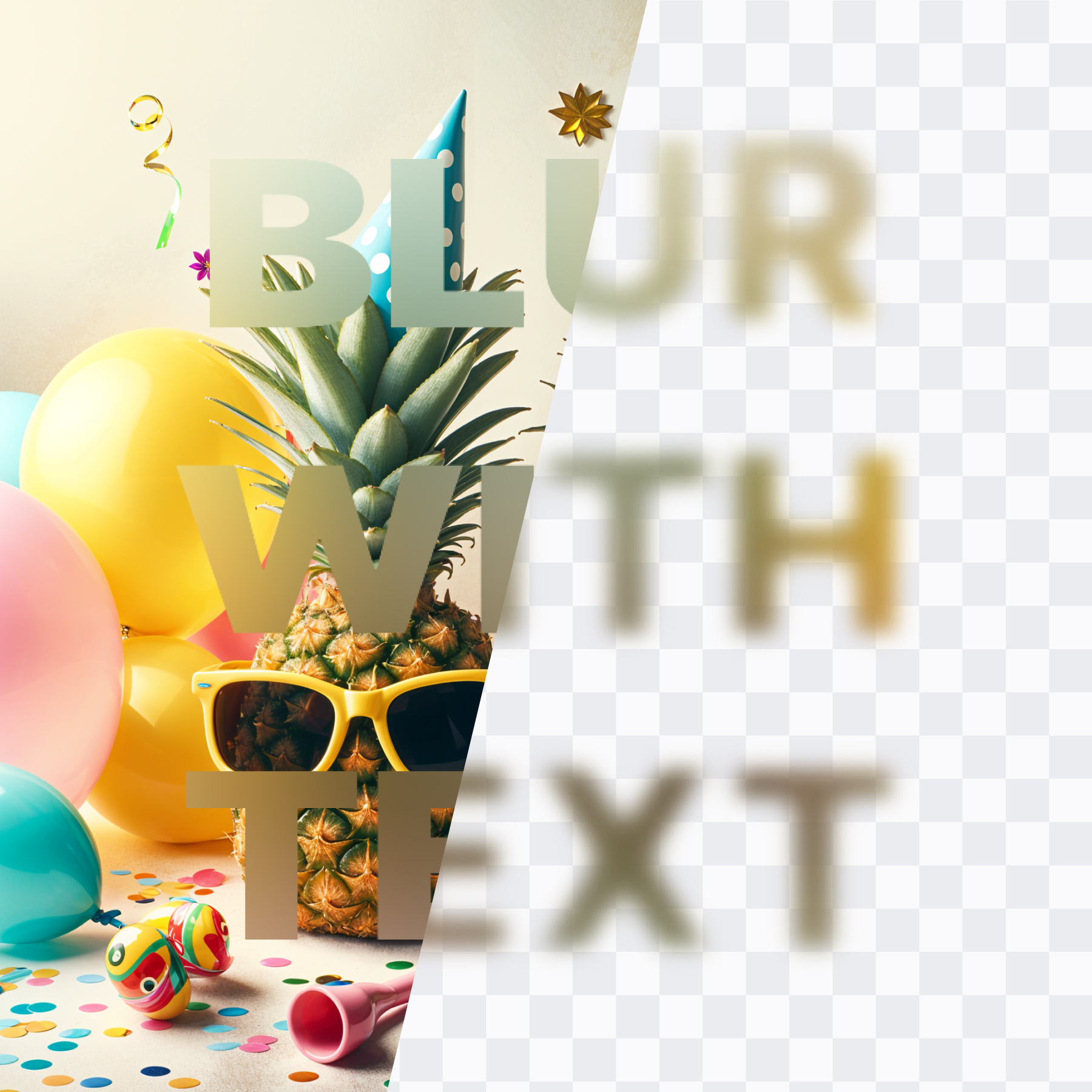
Try Frame Blur in Canva
Blur faces, backgrounds, objects, shapes, and text inside Canva—fast and controllable.
Open Frame Blur in CanvaWhy AI isn’t always the right tool for privacy
“AI photo blur” usually means some kind of automated detection (faces, people, plates, backgrounds) and then a blur applied to what the model identifies. That can be convenient—but it also creates a question you may not want to answer for certain photos:
- Where did my image go? Some tools process images on remote servers.
- How long is it stored? Even “temporary” storage can be unclear.
- Who has access? You may not control logs, vendors, or retention policies.
- Can it be used for training? Policies vary widely across products.
If your goal is straightforward anonymization—blur a face, pixelate text, hide an address—the safest default is to keep the transformation as local as possible.
What Frame Blur does differently
Frame Blur is built around a simple promise: you choose what gets hidden by drawing a mask, then applying a blur or pixelation effect. There’s no face recognition or background segmentation required to get clean results.
- No AI required: Frame Blur applies visual effects (blur/pixelation) rather than AI detection.
- Local rendering: the blur effect is computed in your browser session (fast and deterministic).
- Control: you can be precise (shapes) or fast (brush), and you can verify at 100% zoom.
What “local” means (especially in Canva)
When you use Frame Blur in Canva, your design assets are handled by Canva. Frame Blur doesn’t add an extra “upload your photo to our blur server” step. Instead, the effect is rendered in-app, and the result is saved back into your design.
In other words: no separate Frame Blur image upload, no sending your photo off to a third-party blur API just to apply a blur.
When AI still helps
If you need automatic detection at scale (e.g., auto-blur every face in a folder), AI-based tools can be a great fit—especially when the images aren’t sensitive and your organization is comfortable with the data flow. For privacy-critical edits, many teams choose a more controlled workflow: manual masking + strong pixelation + review.
A privacy-first blur workflow (simple checklist)
- Mask what matters: face, plates, addresses, screens, badges—anything identifiable.
- Prefer pixelation for anonymity: it’s clearer and often stronger than soft blur.
- Edit at final size: blur strength should be judged at your export dimensions.
- Verify at 100%: zoom in and confirm nothing readable remains.
- Keep originals safe: store the unedited source separately if you need it.
Open Frame Blur
Apply blur or pixelation with masking, then export directly into your Canva design.
Open Frame Blur in CanvaFAQ
Does Frame Blur use AI to blur?
Frame Blur focuses on masking + visual effects (blur/pixelation). That means you can anonymize specific regions without relying on AI detection.
Do my photos get uploaded to Frame Blur servers?
Frame Blur is designed to avoid a separate “upload to our server” blur step. The effect is rendered in your browser session and saved into your Canva design.
Is blur enough for anonymity?
Sometimes. For stronger protection, use pixelation or a heavy blur, apply it at final export size, and double-check at 100% zoom. When anonymity is critical, reduce identifying context (crop, remove unique items, avoid readable metadata in the scene).
Next reads: Top tools to anonymize photos, Best tools to blur faces in photos.