Blog • 2026
Best blur apps for Canva
Canva is where a lot of marketing, social, and product design happens—so the “best blur app” is usually the one that gives you clean masking, professional-looking blur, and a workflow you can repeat quickly.
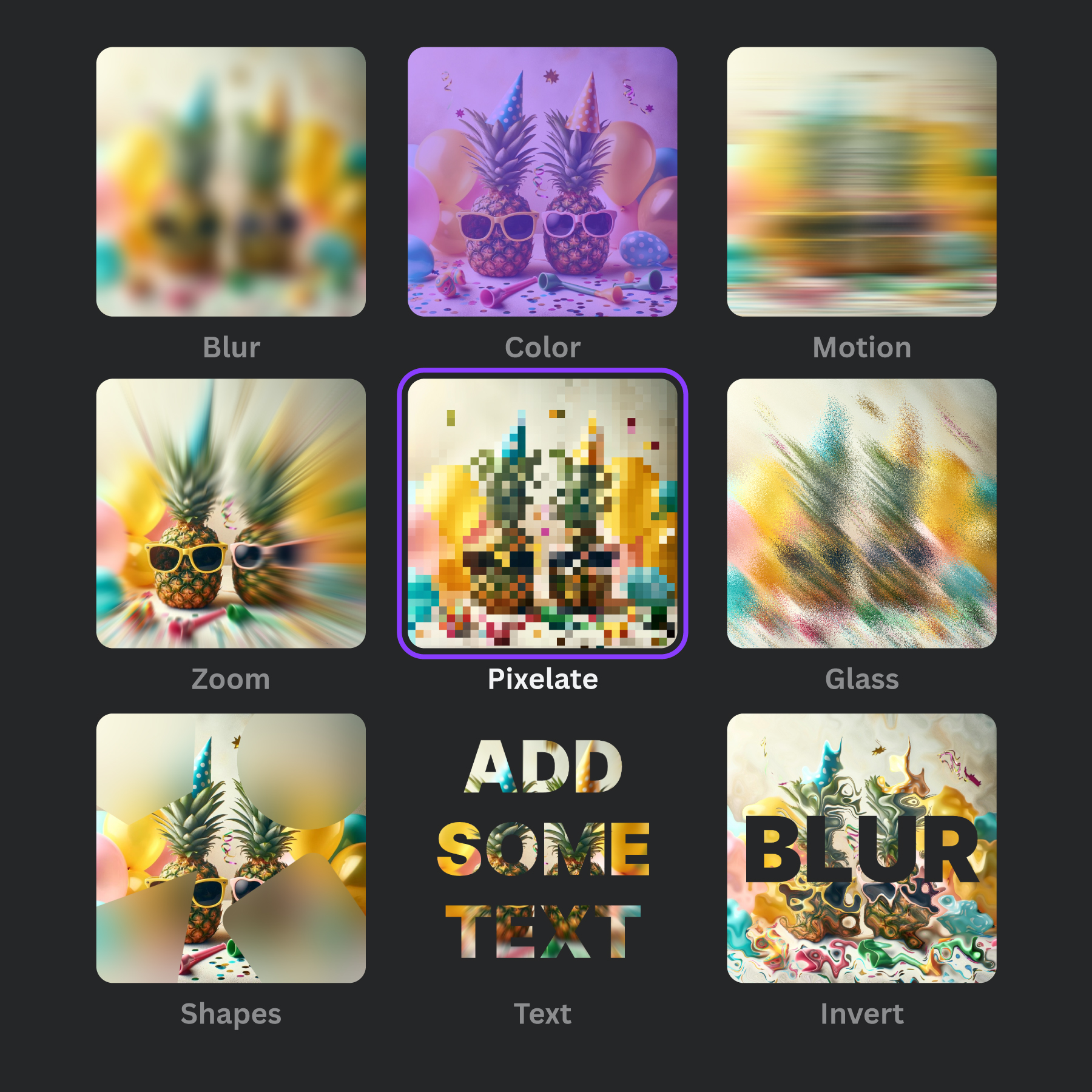
Try Frame Blur in Canva
Blur backgrounds, faces, objects, shapes, and text inside Canva.
Open Frame Blur in CanvaWhat “best” means for a Canva blur app
“Best” depends on your goal. A blur used for style (depth, focus, motion) is different from a blur used for privacy (anonymization). The right app should be strong in three areas:
- Selection & masking: brush, shapes, and the ability to control edges.
- Effects: soft blur, pixelation, glass/warp, zoom, and intensity control.
- Output quality: no halos, no blocky edges, and consistent results at export size.
Checklist: features that matter
1) Brush masking (for speed)
A good brush makes it easy to blur exactly what you want without fighting the tool. Look for brush size control and smooth edges.
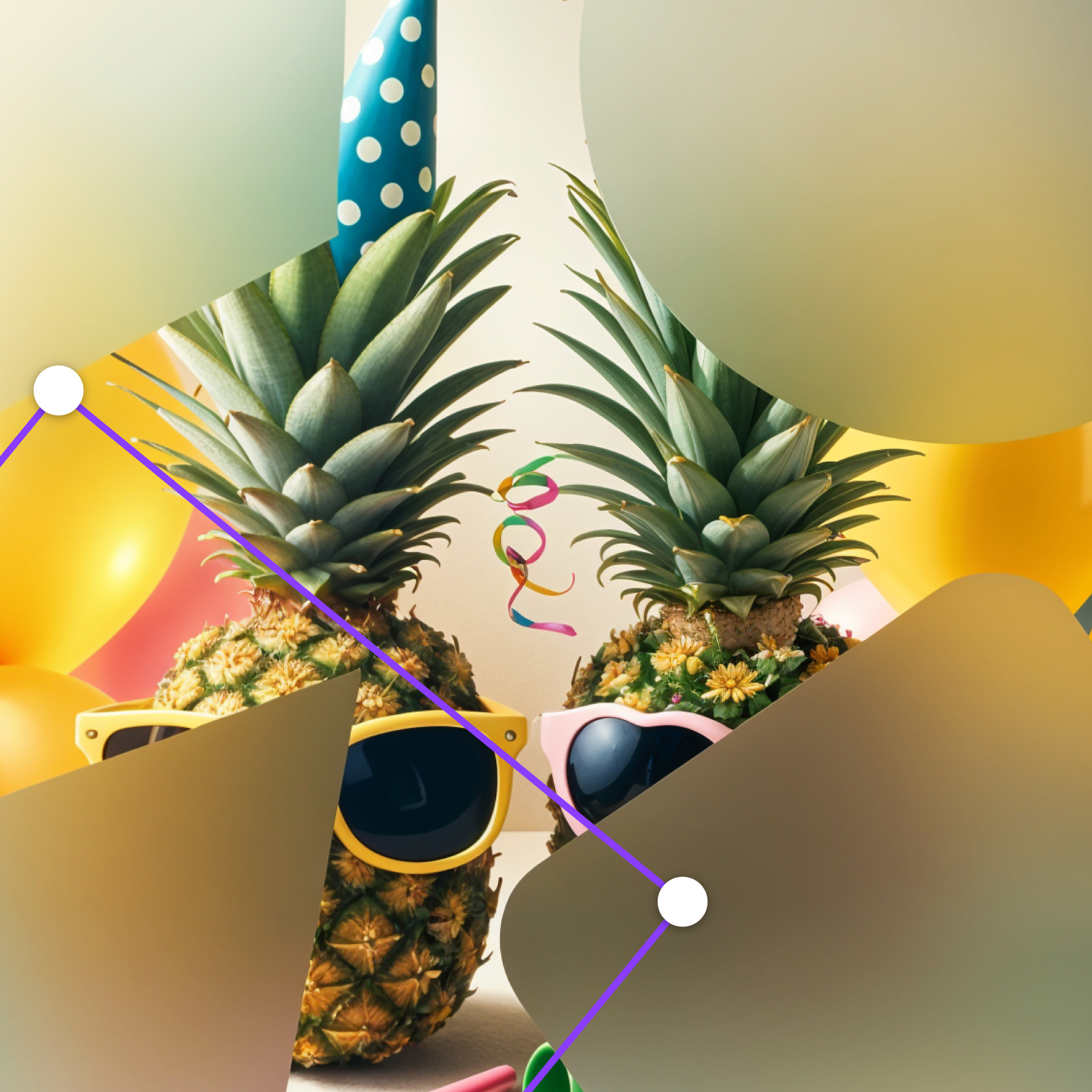
2) Shape masking (for precision)
Shapes are ideal for product photos, UI screenshots, ID cards, and consistent censor boxes. Bonus points if you can blur inside and outside the shape.
3) Edge feathering (for “real” background blur)
The difference between amateur and professional blur is often the edge. Feathering (a soft transition) helps blur blend naturally around hair, hands, and complex objects.
4) Pixelation (for anonymization)
Pixelation is often a better choice than soft blur when your goal is privacy. It’s visually clear that details are intentionally hidden, and it can be stronger against accidental recognition.
5) Repeatability
If you blur dozens of images per week, repeatability wins. The best apps let you apply the same effect style reliably, without spending time tweaking every image.
How to evaluate blur quality (quick test)
- Pick a hard case: hair, glasses, text on a sign, or a busy background.
- Blur at your final export size: avoid editing small, then exporting huge.
- Check edges at 100%: look for halos, sharp cut lines, or visible “rings.”
- Try pixelation vs soft blur: privacy use cases often need pixelation.
Recommended: Frame Blur
If you want a blur app that’s purpose-built for masking and blur effects inside Canva, Frame Blur focuses on a simple workflow: select an image → draw a mask → choose an effect → save.
FAQ
Is blur enough to anonymize a face?
It depends. For privacy, stronger is better: pixelation or a heavy blur, applied at final export size. If you need true anonymity, consider additional steps (cropping, removing metadata, and avoiding unique identifiers in the scene).
What’s the best effect for background blur?
A soft blur with controlled edge feathering tends to look the most “camera-like.” Use zoom/glass effects for style, not realism.
Next reads: How to blur background professionally, Best tools to blur faces in photos.