Blog • Privacy
Best tools to blur faces in photos
Face blurring is one of the most common privacy edits—used for user-generated content, client work, events, schools, and public sharing. The best tool is the one that helps you blur faces fast and reliably without leaving recognisable detail behind.
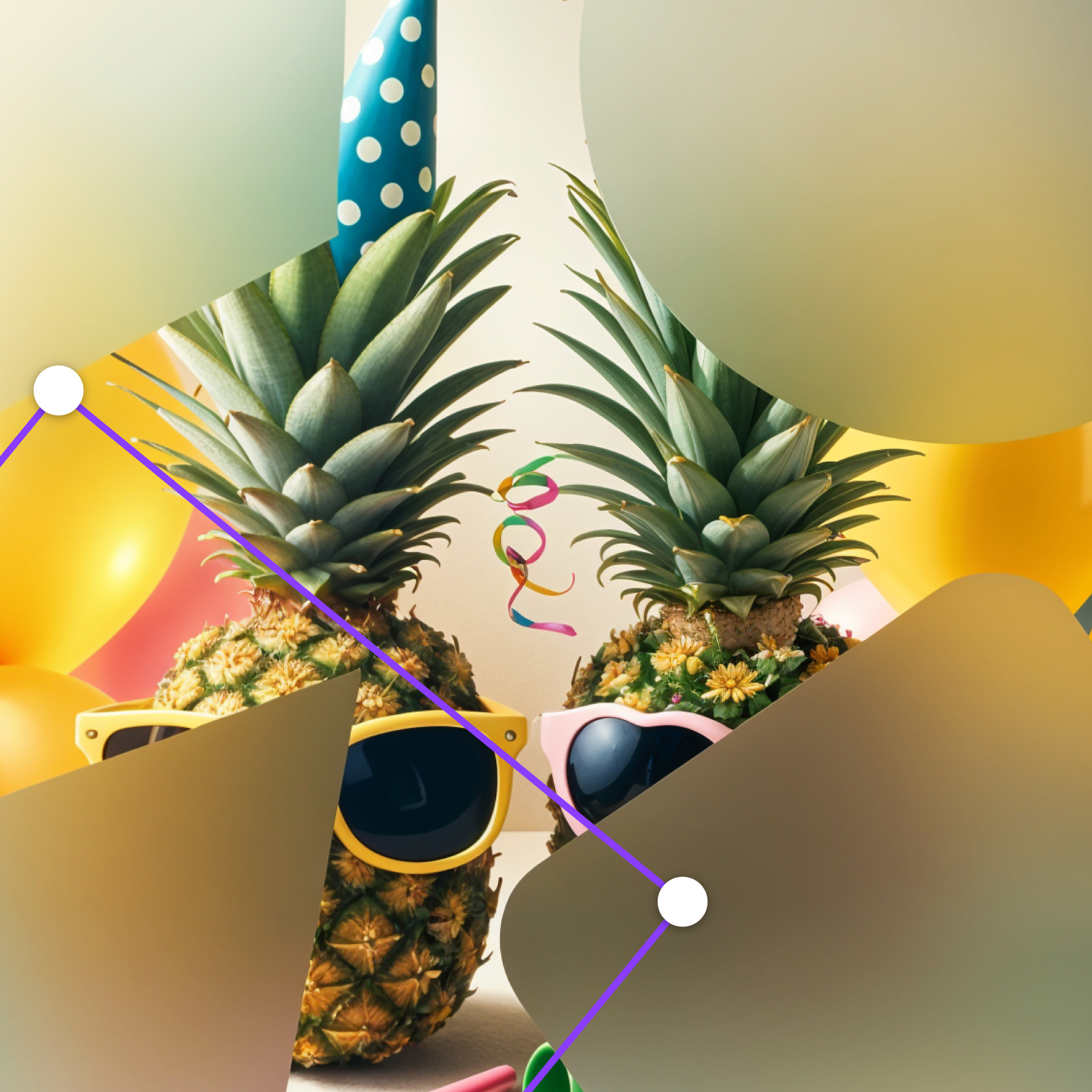
Blur faces in Canva
If your images already live in Canva, blur faces with Frame Blur.
Open Frame Blur in CanvaBlur vs pixelation for faces
For privacy, pixelation is often safer than a gentle blur. A soft blur can still leave enough structure (eyes/mouth shape) that a person might be recognised—especially if the image is high resolution.
- Use pixelation when anonymization is the goal.
- Use soft blur when the goal is style (depth-of-field) rather than privacy.
- Export at final size and verify at 100% zoom.
Top tool types (and who they’re for)
1) Canva-based tools (fastest for content workflows)
If you’re already designing posts, slides, or thumbnails in Canva, using a Canva blur tool reduces friction: no downloads, no re-uploads, and no version confusion.
Best for: social teams, marketers, agencies delivering Canva designs.
Recommended: Frame Blur (mask with brush/shapes and apply blur/pixelation).
2) Auto face detection tools (speed at scale)
Tools that detect faces automatically can be great for batches, but they can miss faces at angles, in shadows, or in reflections. Always do a manual review.
3) Desktop editors (maximum control)
Desktop editors are ideal if you need precision (hairlines, partial occlusions) or consistent actions across many files.
4) Mobile apps (fast, but easy to miss details)
Mobile is perfect for quick privacy edits on the go. The risk is missing small faces in the background on a small screen.
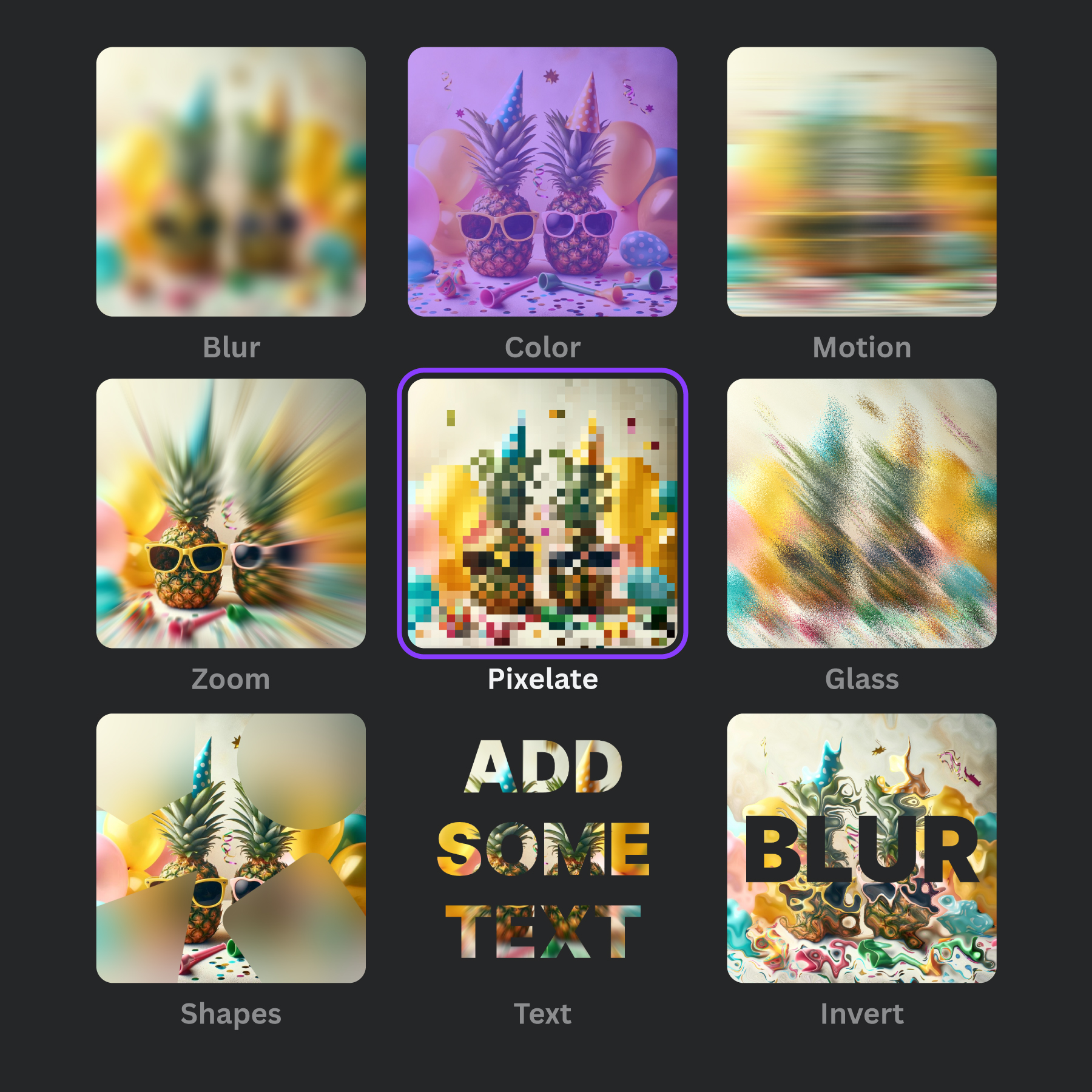
Face blur workflow that actually holds up
- Find every face (background + reflections).
- Mask slightly larger than the face (include ears/hairline).
- Pick pixelation or strong blur (privacy-first).
- Export at final size.
- Verify at 100% and re-check after compression/upload.
Quick Canva method (recommended)
Inside Canva with Frame Blur:
- Open Frame Blur in Canva.
- Select your photo.
- Brush-mask the face areas (include hairline/ears).
- Apply pixelation or a heavy blur.
- Export and verify.
Blur a face right now
Open the Canva app and blur/pixelate faces in your design.
Open Frame Blur in CanvaRelated: Top tools to anonymize photos, Best blur apps for Canva.