Blog • Editing
How to blur background professionally
“Professional” background blur isn’t just about turning the blur strength up. It’s about natural edges, realistic depth, and exporting at the right size so your subject stays crisp.
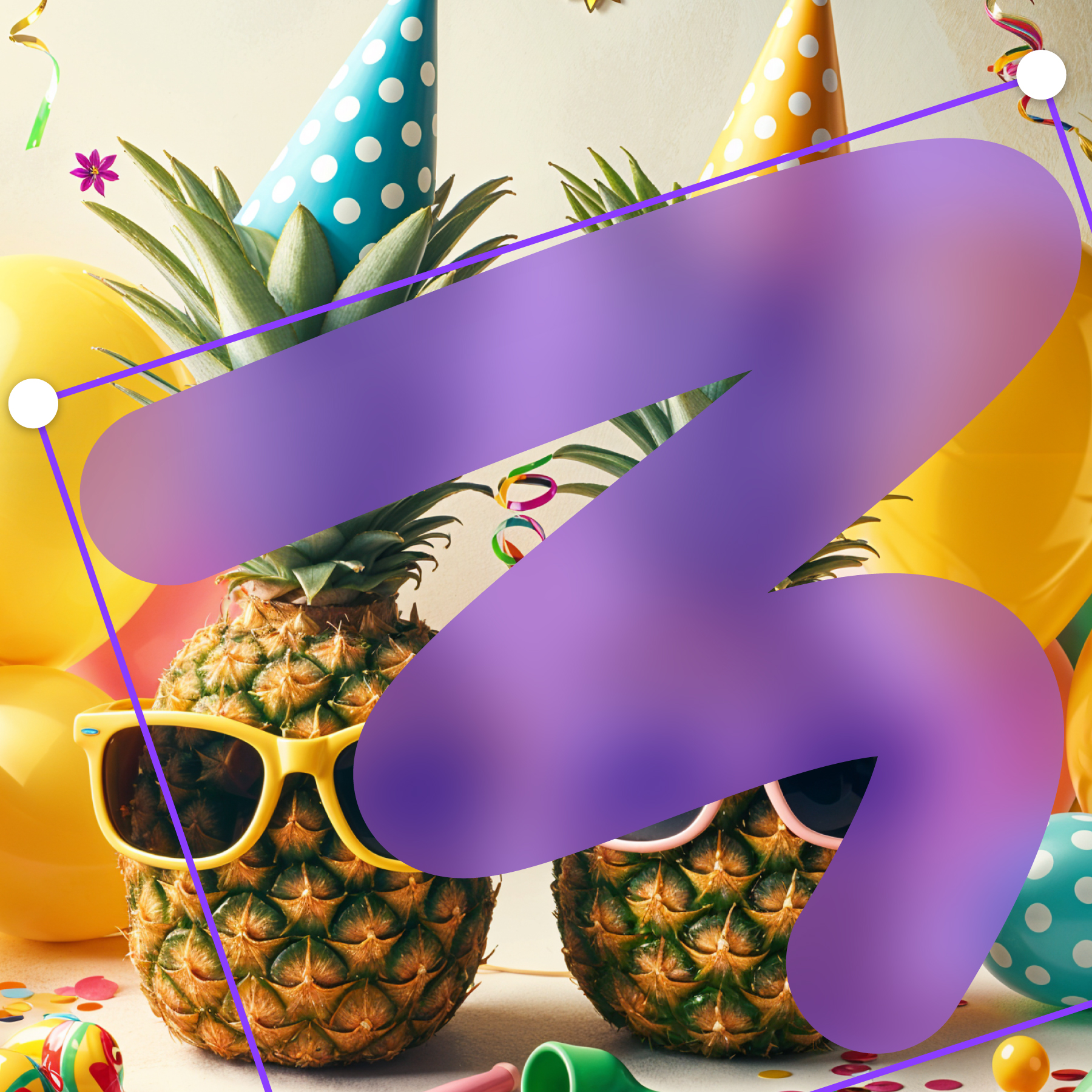
Canva workflow
If you’re editing in Canva, you can do the whole background blur workflow with Frame Blur.
Open Frame Blur in CanvaStep-by-step professional background blur
1) Start with a high-quality image
Blur is unforgiving when the source is tiny or heavily compressed. If possible, start with the largest version of your image and only compress at the end.
2) Decide what should be sharp
Professional blur feels intentional. Usually, keep the subject’s eyes/face sharp (portraits) or the product edges sharp (e-commerce). Everything else becomes background.
3) Mask the background cleanly
Use a brush mask for speed and shape masks for straight edges. The goal is to separate foreground and background without “cut-out” artifacts.
- Hair & fur: zoom in and paint in small strokes.
- Glasses & hands: feather edges slightly to avoid a sticker look.
- Text or signage: consider leaving it sharp if it’s part of the subject.
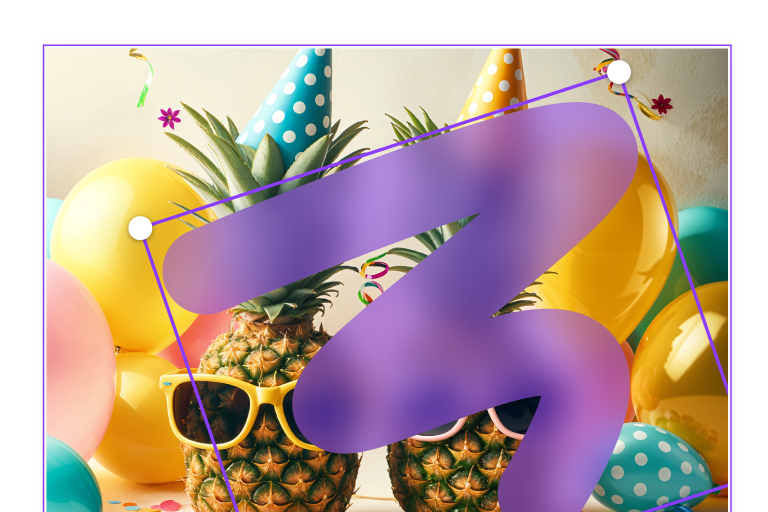
4) Add feathering (the secret weapon)
A hard edge is the #1 giveaway. Feathering adds a small transition band so blur blends into the subject. Even a subtle feather makes a big difference.
5) Choose the right blur type
Use the blur type that matches your intent:
- Soft blur: most realistic “camera-like” background blur.
- Zoom blur: stylized, energetic, not realistic depth-of-field.
- Glass / distortion: creative look; can hide busy detail without looking like defocus.
- Pixelate: for privacy/anonymization—not for professional portrait style.
6) Match blur strength to the scene
If blur is too strong, it can look fake—especially when the subject is “studio sharp” and the background is mush. Try to keep some structure in the background (colors, big shapes) while removing distracting detail.
7) Export at final size and re-check edges
Always review at 100% zoom on the exported image. Look for halos, jagged edges, or missed background patches around shoulders, hair, and object edges.
Common mistakes (and quick fixes)
Halo around the subject
Fix: reduce mask hardness and add feathering. Avoid over-sharpening the subject.
Blur bleeding into the subject
Fix: tighten your mask edge slightly; zoom in and repaint around tricky areas.
Background looks “flat”
Real depth blur usually has a gradient (farther = more blur). If your tool supports it, blend blur intensity from near to far, or mask multiple background zones.
Quick Canva workflow summary
- Open Frame Blur in Canva.
- Select an image.
- Draw a mask on the background.
- Pick a soft blur effect and adjust intensity.
- Feather edges and export at final size.
Next reads: Top tools to anonymize photos, Best tools to blur faces in photos.