Blog • Privacy
Top tools to anonymize photos
Anonymizing photos means removing identifying details—usually faces, license plates, addresses, ID numbers, and unique background clues. The best “tool” is the one that makes your anonymization strong, consistent, and hard to undo.

Anonymize inside Canva
If your workflow lives in Canva, you can anonymize images with Frame Blur.
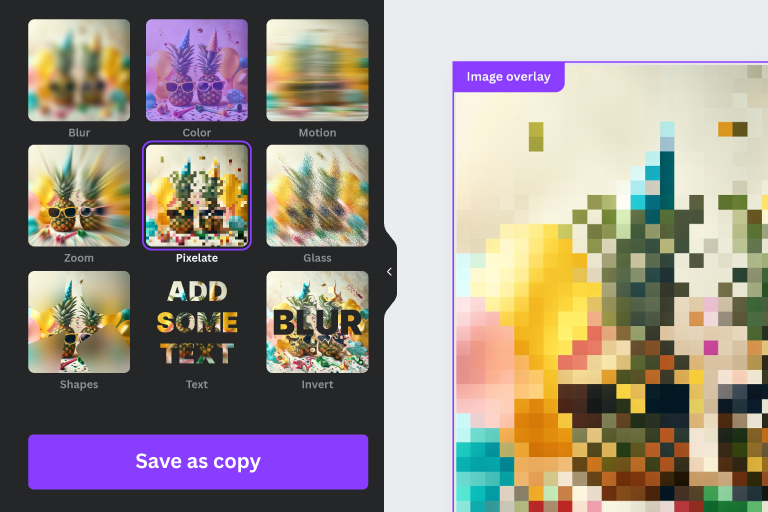
Open Frame Blur in CanvaBlur vs pixelation vs solid blocks
There are three common ways to hide details. Each has pros and cons:
- Soft blur: looks natural, but can be too weak if not applied heavily.
- Pixelation: strong “censored” look; often better for privacy than soft blur.
- Solid shape blocks: strongest visually; can be safest for IDs and addresses.
If your goal is serious anonymization, lean toward pixelation or solid blocks, and always verify at the final export size.
What you should anonymize (beyond faces)
- Faces (including reflections in mirrors/windows)
- License plates
- Street signs, house numbers, addresses
- ID cards, badges, paperwork
- Computer/phone screens
- Unique tattoos or logos (depending on context)
Tool categories (and when to use them)
1) Canva-based anonymization (fastest for design workflows)
If you already design in Canva, using an in-Canva tool keeps everything in one place: import → anonymize → export, without switching apps or re-uploading files.
Best for: marketing assets, social posts, presentations, client decks, quick edits.
Recommended: Frame Blur (mask + blur/pixelation workflows).
2) Desktop photo editors (maximum control)
Desktop tools offer the most control—great when you need extremely clean selections, batch actions, or consistent exports for large projects.
Best for: high-stakes anonymization, agencies, compliance workflows.
3) Mobile anonymization apps (on-the-go)
Mobile is convenient for quick privacy edits before posting. The downside is smaller screens make it easier to miss details like reflections, badges, or addresses in the background.
Best for: quick blur before sharing.
4) Automated face/plate detection tools (speed at scale)
Automatic detection can be great—but treat it as a first pass, not a guarantee. Always do a manual review, because missed faces happen.
Safety checklist before you publish
- Zoom to 100% on the final exported file.
- Check reflections and background details.
- Prefer pixelation for identities (faces/plates) if needed.
- Export at final size (don’t anonymize small then upscale).
- Remove metadata if the file contains sensitive EXIF/location info.
Quick Canva anonymization workflow (recommended)
- Open Frame Blur in Canva.
- Select the photo in your design.
- Draw a mask over faces/plates/addresses.
- Apply pixelation or strong blur.
- Export and verify at 100% zoom.
Anonymize your next image
Open the Canva app and blur/pixelate what you need.
Open Frame Blur in CanvaRelated: Best tools to blur faces in photos, Best blur apps for Canva.