Blur an image online — fast, free, and easy
Censor sensitive areas, create depth, or hide details in seconds.
- Brush, shapes, and pixelate tools
- Instant download — no signup
- Privacy-friendly workflow

Tip: Blur faces, license plates, addresses, documents, or any object.
Try it now
Upload a photo, click “Add blur”, then draw over what you want to hide.
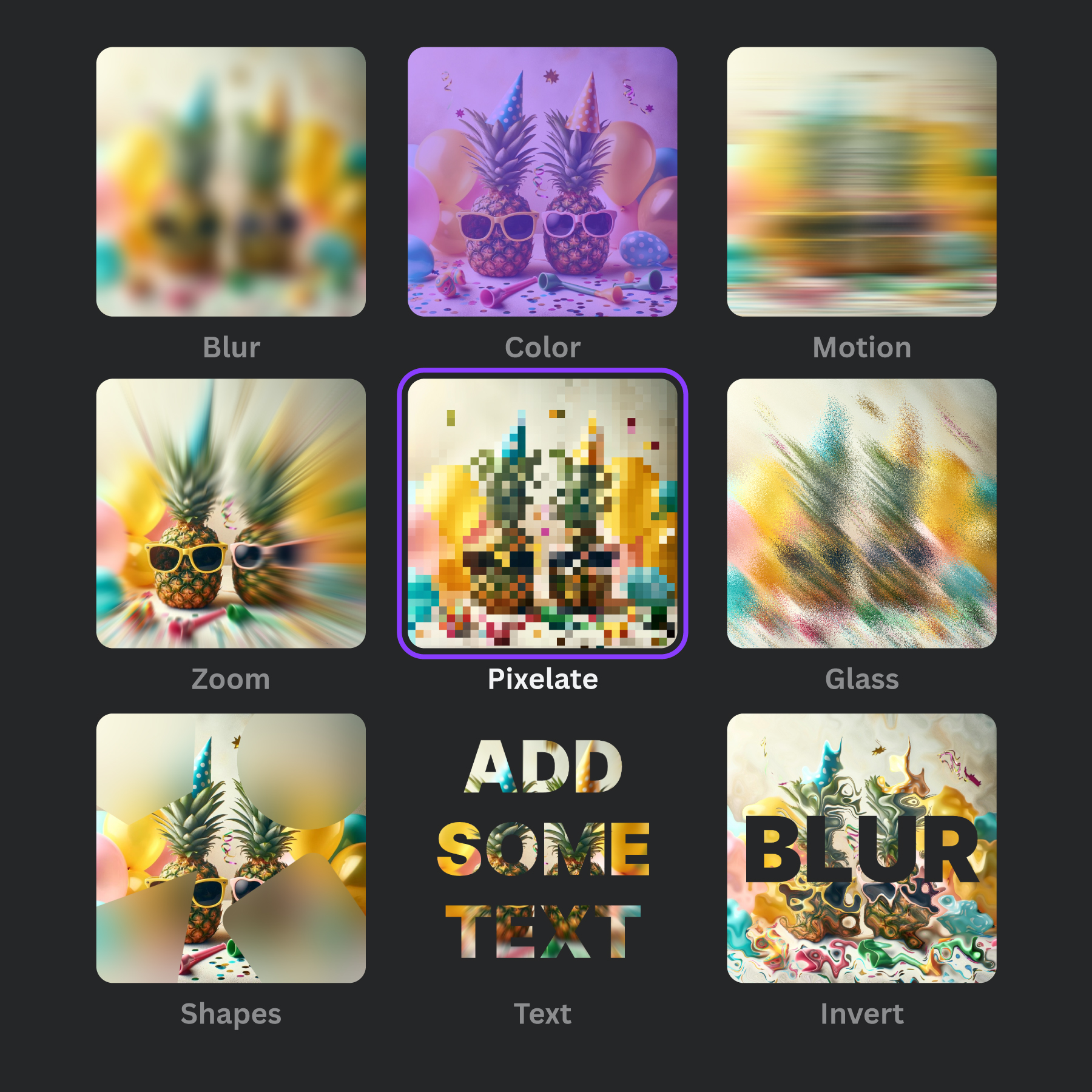
How to blur a photo online (3 steps)
- Open the editor and upload your image.
- Brush over the area to blur or add a shape mask for clean edges.
- Choose blur strength (or pixelate), then download.
Why use Frame Blur?
Frame Blur is built for fast, conversion-friendly edits: blur, pixelate, and censor without fuss. It’s also available as an official Canva app.
FAQs
Answers to common questions about blurring images online.
How do I blur an image online?
Open Frame Blur, upload your photo, brush the area you want to blur, then download.
Can I blur only part of an image?
Yes. Use the brush tool for custom areas or shape masks for precise blur regions.
Do you support pixelation / censoring?
Yes — use the Pixelate effect to censor sensitive information like addresses, IDs, and license plates.
Is it free?
Yes. You can blur an image online for free.
What images can I use?
Common formats like JPG and PNG work great. Just upload and start blurring.
Ready to blur your image?
Open the editor and finish in under a minute.
Start blurring