Censor an image online — blur or pixelate in seconds
Hide private info before you post, share, or publish.
- Blur or pixelate any region
- Brush + shape masks for precision
- Fast downloads, no signup

Pro tip: pixelate for obvious censorship; blur for a softer look.
Try it now
Mask the info you want to hide, then pick blur or pixelate.
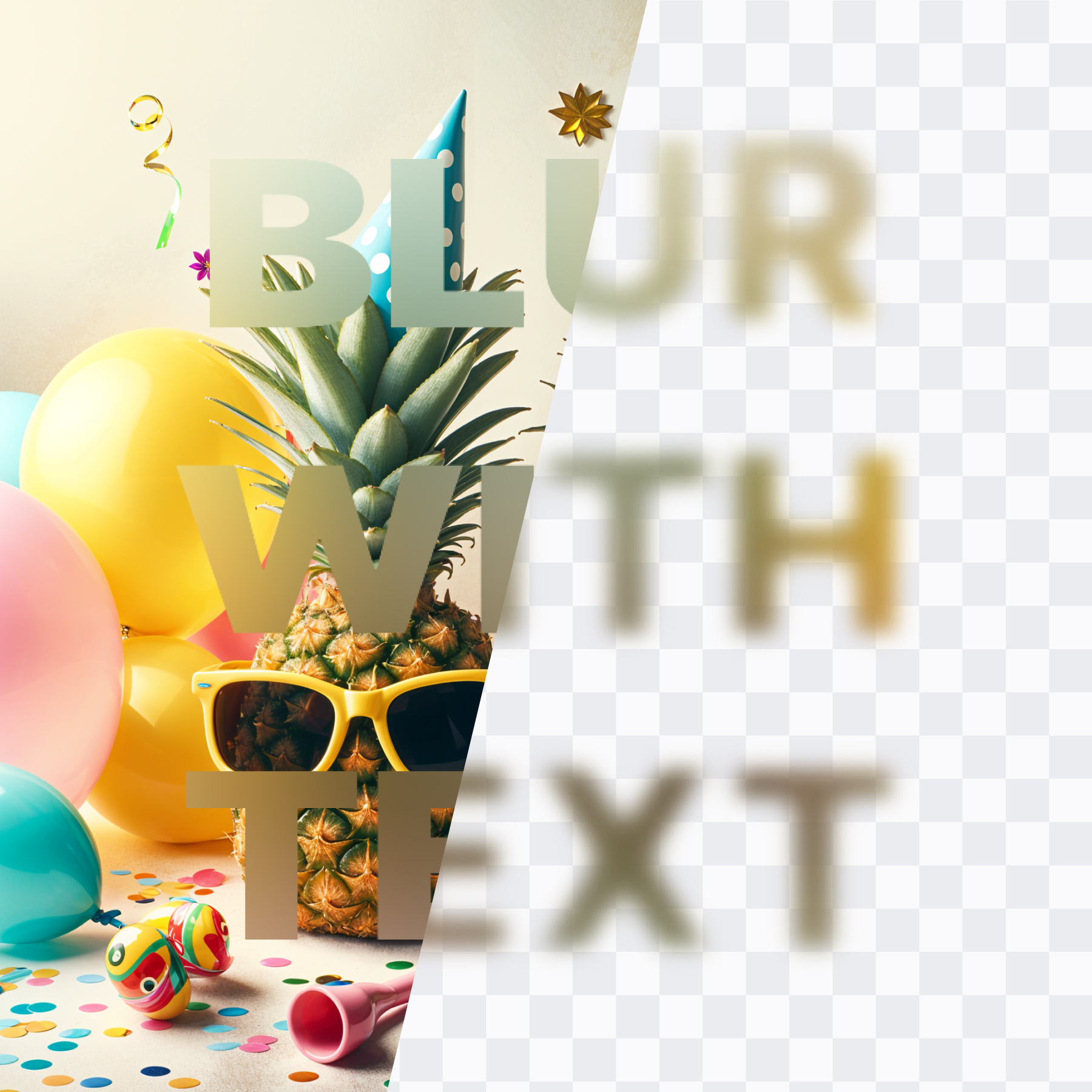
How to censor a photo online
- Upload your image.
- Select sensitive areas with brush or shapes.
- Choose blur or pixelate and download.
What people censor most
Faces, plates, addresses, IDs, emails, phone numbers, receipts, and screenshot UI data.
FAQs
Censorship questions, answered.
How do I censor an image online?
Open Frame Blur, select the region, then blur or pixelate it before downloading.
Blur vs pixelate: which is better for censoring?
Pixelate is more obviously “censored”. Blur is more subtle. Use whichever fits your purpose.
Can I censor multiple items?
Yes — add multiple masks to cover several regions.
Is it free?
Yes. You can censor images online for free.
Can I use it inside Canva?
Yes — Frame Blur is available as an official Canva app.
Censor your image now
Hide sensitive details before you share.
Open editor