Pixelate an image online — censor sensitive details
Turn any area into a mosaic: faces, plates, addresses, IDs, and more.
- Pixelate only what you select
- Brush + shapes for clean censor blocks
- Fast downloads, no signup

Quick workflow: select region → choose Pixelate effect → download.
Try it now
Mask the area you want to censor, then select the Pixelate effect.
How to pixelate a photo online
- Upload your image.
- Select the region to censor with brush or shapes.
- Choose Pixelate and download.
Blur vs pixelate
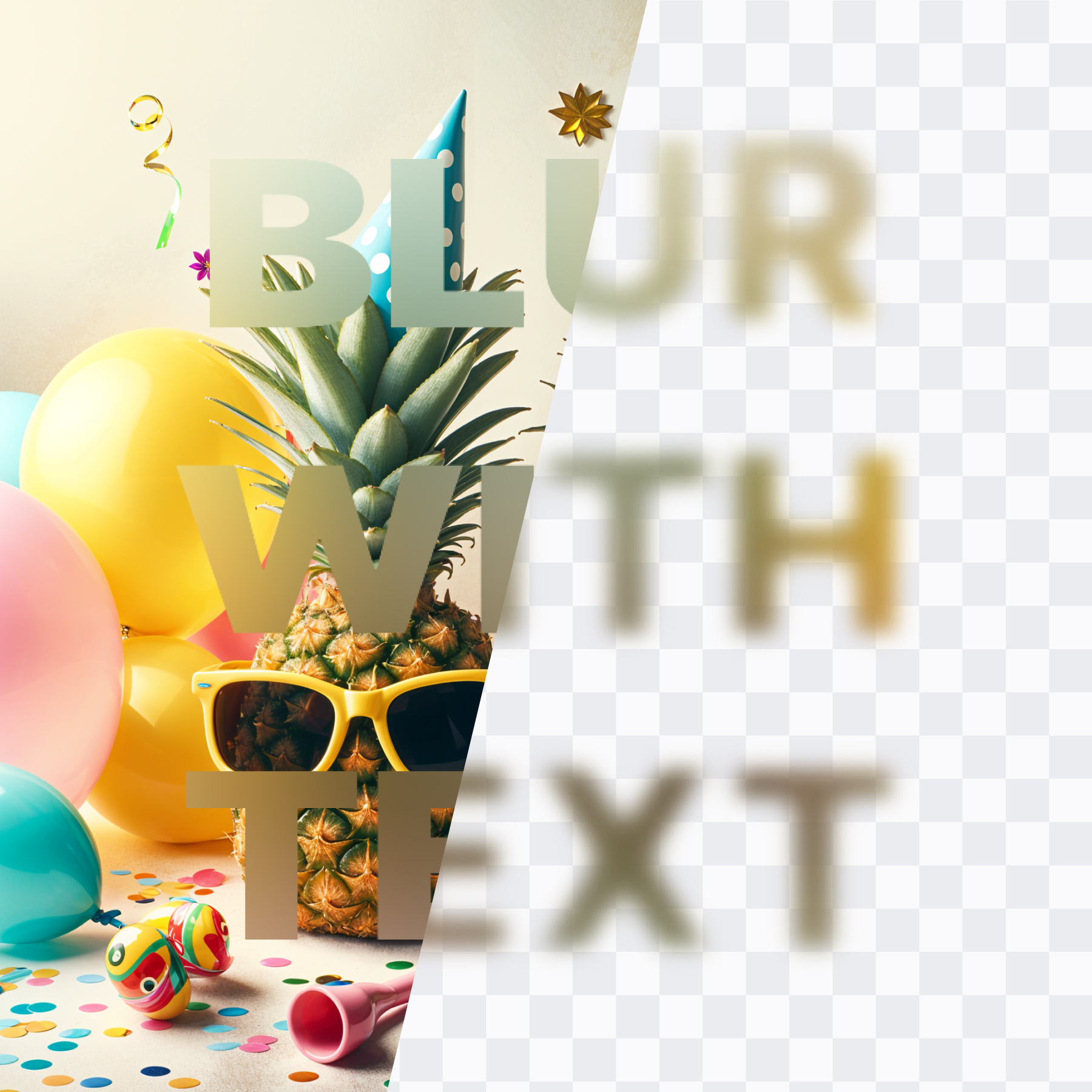
Pixelate is a strong “censored” look. Blur is smoother and more aesthetic. You can choose either per mask.
FAQs
Pixelation questions, answered.
How do I pixelate an image online?
Use Frame Blur: mask the region, then select Pixelate.
Can I pixelate multiple regions?
Yes. Add multiple masks, then adjust the effect strength as needed.
Is pixelation reversible?
Once exported, pixelation is baked into the image. Keep the original file if you need an unedited copy.
Is it free?
Yes — pixelate images online for free.
Does this work in Canva?
Yes. You can also use Frame Blur inside Canva.
Pixelate your image now
Censor sensitive details in seconds.
Open editor